Obsidian Cornell Notes Template: Callouts Plus One CSS Snippet
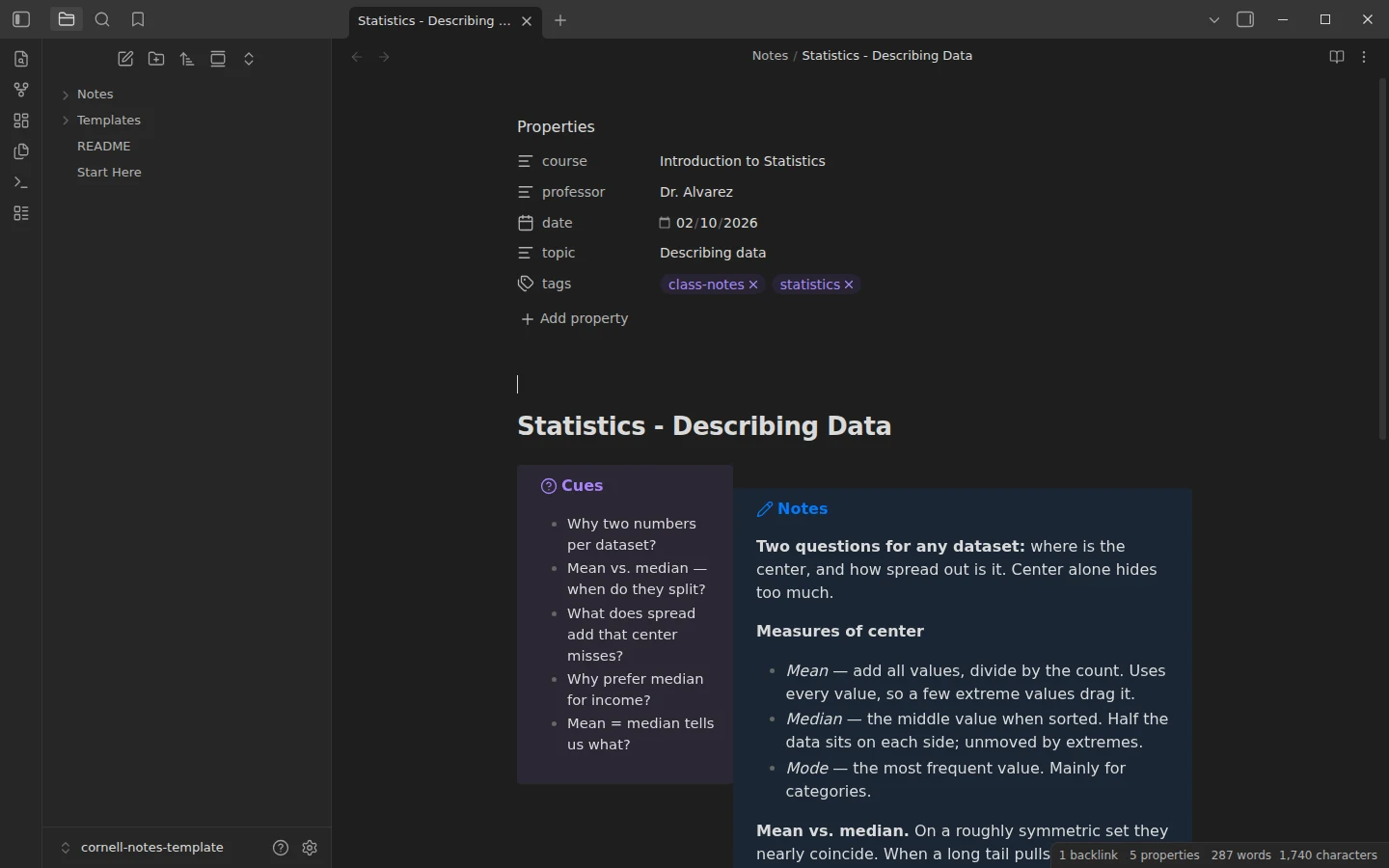
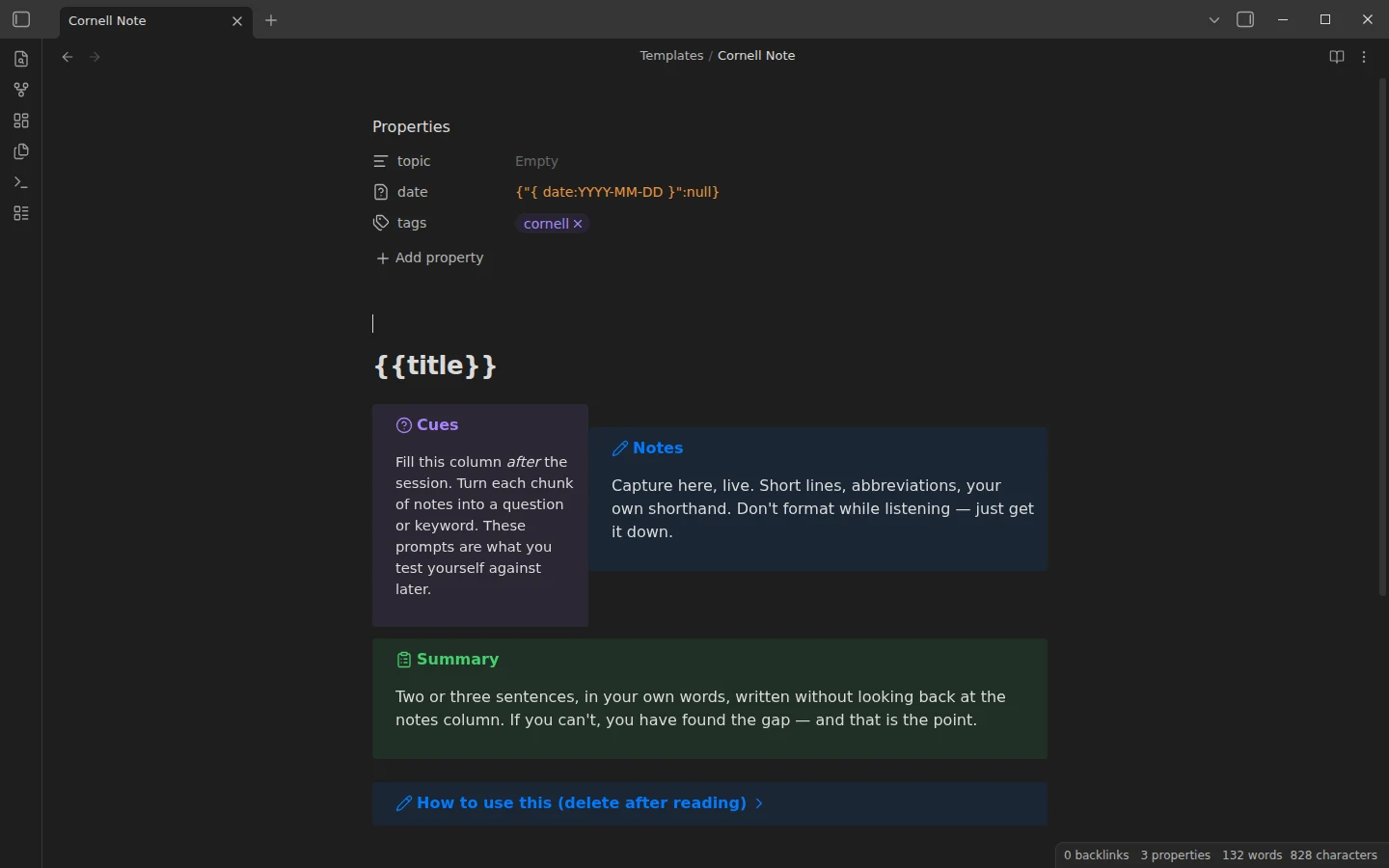
Quick install: unzip the file and open the folder as a vault in Obsidian, or copy the templates into your existing vault. Full install guide
What plugins you need
- Required
- core Templates
The Cornell layout — a narrow cue column, a wide notes area, a summary band across the bottom — is the part of the method most note apps cannot reproduce. This Obsidian Cornell notes template builds it from three plain callouts and a single CSS snippet. No community plugins, no special syntax to learn: the notes stay ordinary Markdown that would still read fine anywhere else.
What's inside the Cornell notes template for Obsidian
- Templates/ — Cornell Note for any material, and Class Notes (Cornell), a variant that adds
course,professoranddatefrontmatter so class notes stay sortable by subject. - Notes/ — three fully worked examples: Statistics - Describing Data, History - The Printing Press and Biology - Photosynthesis Overview. Open one in reading view first; the layout explains itself faster than any description.
- cornell.css — the layout engine, shipped pre-enabled in the vault's snippets folder. It floats the
[!cue]callout left at 32% width, sets[!notes]beside it and clears[!summary]underneath — the classic Cornell page, collapsing to stacked blocks on narrow windows.
Cornell notes in Obsidian without plugins
Everything runs on what Obsidian ships with, so you can keep restricted mode on when opening the vault — there is nothing to whitelist. The three zones are just callouts, and the snippet can be toggled in Settings → Appearance → CSS snippets if you ever want the plain stacked view back. Because the structure is Markdown plus CSS rather than a plugin, there is nothing here for an Obsidian update to break.
How the Cornell note-taking workflow runs
- During class — write only in the notes zone. Short lines, abbreviations, gaps are fine.
- Same day — fill the cue column: turn each chunk of notes into a question or keyword you could be asked on an exam.
- Then the summary — two or three sentences in your own words, written without looking back at the notes.
- To review — cover the notes column and answer the cue questions out loud. The cues make self-testing possible; the summary tells future-you what the page was about.
The three example notes show every stage filled in, including the kind of cue questions worth writing.
Install the Cornell notes template
Download the zip, unzip it, and use Open folder as vault in Obsidian — or grab the same folder from the GitHub mirror. New notes are created through the core Templates plugin, already pointed at Templates/; if you have never inserted a template before, core Templates vs Templater walks through it in two minutes. For the rest of the study workflow — lectures, deadlines, exam prep — this pairs naturally with the student vault, and the student templates category collects everything aimed at coursework.
More templates
-
 For Students: Free Templates & Vaults Obsidian Student Template: A Working Vault for Courses, Deadlines and Exams Free Obsidian student template: a vault organized by term and course, with a Dataview dashboard that lists every deadline and exam from frontmatter. View template →
 -
 TTRPG Templates: D&D Campaigns & Worldbuilding Obsidian D&D Character Sheet: a 5e Template That Calculates Itself Free D&D 5e character sheet for Obsidian: ability scores in properties, and Dataview works out modifiers, skills, saves, Passive Perception and spell DC. View template →
 -
 Kanban & Project Management Templates Obsidian Gantt Chart Template: Timelines Drawn from Your Task Notes Free Obsidian Gantt chart template: tasks are notes with start and end dates, and a Dataview query draws a Mermaid Gantt chart per project, by phase. View template →
 -
 Meeting Note Templates for Work Obsidian CRM Template: A Personal CRM Vault with Contacts, Deals and Follow-ups Free Obsidian CRM template: contacts, companies, deals and dated interactions, with a Dataview dashboard for follow-ups, pipeline by stage and cold contacts. View template →